Flutter Carousel Widget Component: M3 CarouselView, Hero and Multi-Browse Layouts (2026)
The flutter carousel widget component patterns we ship in production: M3 CarouselView (uncontained), CarouselView.weighted for hero and multi-browse layouts, carousel_slider migration, accessibility patterns and the five carousel bugs we catch in code review.

Across the ten industries we ship Flutter in, the carousel shows up wherever a product needs to surface multiple options without overwhelming the user. The use cases are everywhere once you start looking: onboarding swipes, product galleries, dashboard story tiles, news cards, promo banners. The choice between the new M3 CarouselView (built in since Flutter 3.16), the long-standing carousel_slider community package, a PageView with custom indicators, or a hand-rolled gesture-driven scroller looks small at design time and turns into a performance plus accessibility or M3-conformance question once the app hits real users. This guide walks through the flutter carousel widget component patterns we actually ship, the M3 layouts most tutorials still skip, and the production-grade fixes the community packages miss.
Two framing notes. Flutter 3.16 shipped CarouselView and CarouselView.weighted as first-class Material 3 components, which collapses the legacy carousel-package shootout into a much simpler decision: use the built-in for 80% of carousels, escape to packages only for fully custom transitions or non-Material design systems. Second: the community carousel_slider package is still maintained and worth keeping in a few use cases, but for new builds CarouselView is the M3-aligned choice. The migration off carousel_slider is usually under 60 lines of code per screen and saves measurable bundle weight on every platform.
When the flutter carousel widget component is the right primitive
CarouselView is the right primitive whenever you have a list of peer items where one is focal and the rest preview to either side, or where the user is expected to swipe through items in sequence one at a time. The two intents are different but the widget covers both cleanly through its named constructors. Use CarouselView when content needs swipe-through navigation between peer items: product galleries, onboarding screens, story tiles, news cards, promo banners. CarouselView ships the right M3 motion curve, the right snapping behavior, the right keyboard semantics, and the right layout math for multi-browse and hero layouts. The reason to escape to PageView or a custom scroll widget is rarely visual. It is usually because the design needs a non-Material motion curve or a transition the M3 spec does not cover. The other case where a custom scroll widget wins: when you need every item to size to its own content (variable widths across items) rather than the fixed-extent contract CarouselView enforces. That is rare in real designs, but it happens on some commerce screens where the marketing copy under each product is wildly different in length.
| Need | Use | Why |
|---|---|---|
| Standard image carousel with snapping | CarouselView | M3 motion, keyboard support, snapping built in |
| Hero layout (1 big + 2 small peeks) | CarouselView.weighted with flexWeights: [3,2,1] | First-class M3 layout, no manual math |
| Multi-browse layout (5 items visible at once) | CarouselView.weighted with flexWeights: [1,2,5,2,1] | M3 multi-browse spec; sizes change as items scroll |
| Onboarding flow (full-screen pages with page indicator) | PageView with PageController | Onboarding wants discrete pages, not a continuous carousel |
| Auto-playing rotating banner | carousel_slider package | CarouselView has no built-in auto-play; package fills this gap |
| Fully custom transition (3D flip, cube) | PageView with custom AnimatedSwitcher | Material spec does not cover 3D; PageView gives raw control |
CarouselView basics: the M3 default
Most carousels in real apps are the uncontained variant where item width is fixed and peer items scroll past one at a time. The standard CarouselView takes a list of children and an itemExtent that controls how wide each item is. The widget handles snapping, scroll physics, and the M3 motion automatically. We use this constructor for most uncontained carousels: a product image gallery on a detail page, a feed of story tiles, a row of promo cards. The shrinkExtent prop is one most tutorials miss. It controls how narrow an item can get on partial scroll. Without it, items at the edge of the viewport snap to a tiny width that looks broken. Set shrinkExtent to about 30-40% of itemExtent for the cleanest motion. The other prop worth knowing is consumeMaxWeight (relevant on the weighted constructor): when false, the smallest item never gets compressed to zero, which prevents the visual of items disappearing entirely off the edge.
CarouselView(
  itemExtent: 280,                    // each card is 280dp wide
  shrinkExtent: 100,                  // minimum width on partial scroll
  itemSnapping: true,                 // snap to nearest item
  onTap: (index) => _openImage(product.images[index]),
  children: product.images.map((url) => Container(
    margin: const EdgeInsets.symmetric(horizontal: 4),
    decoration: BoxDecoration(
      borderRadius: BorderRadius.circular(16),
      image: DecorationImage(
        image: CachedNetworkImageProvider(url),
        fit: BoxFit.cover,
      ),
    ),
  )).toList(),
);
CarouselView.weighted: hero and multi-browse layouts
The weighted variant is where the Material 3 carousel really shows its design intent and where most of the visual character of the M3 spec lives. CarouselView.weighted lets each item own a relative weight that drives how much viewport space it takes. The flexWeights array controls the layout. [3, 2, 1] gives you the hero layout (one large item with two peeks). [1, 2, 5, 2, 1] gives you the multi-browse layout (one center-focal with two peeks on each side). The sizes update dynamically as the user scrolls, which is the M3 multi-browse motion the spec calls out specifically. The flexWeights values are relative ratios, not pixel sizes. The framework computes the actual width per item from the available viewport divided by the sum of weights. So [3, 2, 1] over a 360dp viewport means item 0 gets 180dp, item 1 gets 120dp, item 2 gets 60dp. As the user scrolls, the widget shifts weights from one slot to the next, creating the cascading-resize motion the M3 spec describes. The same flexWeights array also adapts naturally to a tablet at 800dp viewport without media-query branching. We have shipped the same CarouselView.weighted call site to phone and tablet builds and seen both work cleanly with zero per-device tweaks. That responsive-by-default behavior is one of the reasons we have stopped reaching for community carousel packages on new projects this year. The built-in does the responsive math correctly, where most community packages either ignore it or punt to a viewportFraction hack.
// Hero layout: 1 big + 2 small peeks
CarouselView.weighted(
  flexWeights: const <int>[3, 2, 1],
  consumeMaxWeight: false,
  itemSnapping: true,
  onTap: (i) => context.push('/article/${articles[i].id}'),
  children: articles.take(8).map((a) => _NewsCard(a)).toList(),
);

// Multi-browse layout: 5 items visible at once, center is focal
CarouselView.weighted(
  flexWeights: const <int>[1, 2, 5, 2, 1],
  consumeMaxWeight: false,
  itemSnapping: true,
  children: stories.map((s) => _StoryTile(s)).toList(),
);
Picking the right carousel layout: a decision matrix
| Use case | CarouselView (uncontained) | CarouselView.weighted [3,2,1] | CarouselView.weighted [1,2,5,2,1] | PageView (full-screen) |
|---|---|---|---|---|
| Product image gallery (detail page) | Yes: best fit | Variant | No | No |
| Featured-content row (hero card + peeks) | No | Yes: best fit | No | No |
| Story tile carousel (social feed) | Alternative | No | Yes: best fit | No |
| Onboarding flow (full-screen pages) | No | No | No | Yes: best fit |
| Promo banner with auto-rotate | Manual timer | No | No | With Timer; or use carousel_slider |
| Settings card carousel (uncommon) | Yes: best fit | No | No | No |
Migrating from carousel_slider to CarouselView
The carousel_slider package shipped before CarouselView was a built-in. Most existing Flutter codebases use it. The migration is straightforward: the API surface is similar enough that swapping in CarouselView usually takes under 60 lines per screen. The catch: carousel_slider has built-in auto-play and a built-in indicator dot row; CarouselView ships neither. For auto-play, wire up a Timer.periodic; for indicators, draw them yourself with a Row of AnimatedContainer dots. Both are about 20 lines of code each. Three notes from our recent migrations. First, the API for viewport sizing differs (carousel_slider used viewportFraction; CarouselView uses itemExtent in dp) so you may want to compute the extent from MediaQuery.size.width in the build method. Second, the snapping curve is slightly different visually between the two. CarouselView uses the M3 emphasized motion curve, which feels weightier. Third, the page-changed callback API is different — carousel_slider exposed onPageChanged at top level, CarouselView wants you to listen to controller.position via a ScrollController.
| carousel_slider | CarouselView equivalent | Notes |
|---|---|---|
| CarouselSlider(items: ..., options: CarouselOptions(height: 200)) | CarouselView(itemExtent: 280, children: ...) | CarouselView uses width-driven extent, not height |
| autoPlay: true | Timer.periodic(...) firing controller.animateToItem(...) | Manual; ~10 lines |
| enlargeCenterPage: true | CarouselView.weighted with flexWeights: [1,3,1] | Same visual; M3 motion curve |
| Built-in indicator dots | Custom Row of AnimatedContainer | Manual; ~20 lines, full design control |
| CarouselOptions(viewportFraction: 0.8) | itemExtent: <screenWidth * 0.8> | Compute from MediaQuery in the build method |
Performance: where carousels make Flutter apps jank
Accessibility: what CarouselView gives you and what it doesn't
| Gap | Symptom | Fix |
|---|---|---|
| Item position not announced | Screen reader does not say '2 of 8' as user swipes | Wrap each item in Semantics with label: 'Image ${i+1} of ${total}' |
| Keyboard nav stops at carousel | Tab key skips over carousel items | Use FocusableActionDetector on each item; or wrap in Focus |
| Auto-rotate disorients screen-reader users | Items shift while user is reading | Disable auto-play when MediaQuery.disableAnimations is true |
| No alt text on image-only items | Screen reader says 'image' with no context | Set semanticLabel on the image; or wrap in Semantics(label: ..., image: true) |
The five flutter carousel widget component bugs we catch in code review every month
| Bug | Symptom | Fix |
|---|---|---|
| Auto-play interferes with user scroll | User swipes, then auto-play snaps back unexpectedly | Pause Timer while user is actively scrolling (listen to scroll controller) |
| itemExtent in a column with bounded width fails | Items render at zero width | Use LayoutBuilder + MediaQuery to compute itemExtent, not a hardcoded value |
| No caching on image-heavy carousels | Scroll back to previous item refetches network image | Use CachedNetworkImageProvider, not NetworkImage |
| CarouselView inside a ListView with no constraints | Layout exception: unbounded height | Wrap in SizedBox with explicit height |
| flexWeights array length does not match children count | Item sizes off by one | Ensure flexWeights.length matches the number of children passed |
The carousel widget pairs naturally with Card, since most carousel items end up wrapped in a Card.elevated or Card.filled with an image at the top and a title or price below. For the Card primitive that carousel items most often wrap on production builds, see ourguide to the flutter card widget. For how carousels fit into a production Flutter app (state plus performance and CI/CD coverage) our Flutter mobile app development field guide covers the practices we apply on every build.
Common questions about the flutter carousel widget component for production builds
What is the flutter carousel widget component?
CarouselView is the Material 3 carousel primitive that ships with Flutter since 3.16. It supports uncontained (standard fixed-extent carousel), hero (1 big + 2 peeks via flexWeights: [3,2,1]), and multi-browse (5 visible with center focal via flexWeights: [1,2,5,2,1]) layouts. For new builds it replaces the carousel_slider community package for most use cases.
What is CarouselView.weighted?
CarouselView.weighted is a variant where each item gets a relative weight via flexWeights. The weights determine viewport share: [3,2,1] gives a hero layout (one large, two peeks). [1,2,5,2,1] gives the M3 multi-browse layout. Sizes update dynamically as the user scrolls, matching the M3 multi-browse motion spec.
Should I migrate from carousel_slider to CarouselView?
On new builds, yes — CarouselView is the M3-aligned answer. On legacy screens, migrate when you are already touching the surrounding code. The migration is usually under 60 lines per screen. Auto-play and indicator dots are not built into CarouselView — add a Timer.periodic for auto-play and a custom Row of AnimatedContainer for indicators.
How do I add auto-play to a Flutter CarouselView?
Wire up a Timer.periodic that calls controller.animateToItem on tick. Pause the timer while the user is actively scrolling (listen to the scroll controller). Disable auto-play if MediaQuery.disableAnimations is true so screen-reader users do not see the content shift unexpectedly.
What is the difference between CarouselView and PageView?
CarouselView is for peer items that scroll continuously (product gallery, story tiles, banner row). PageView is for discrete full-screen pages (onboarding flow, swipe-tutorial). PageView snaps one page at a time; CarouselView supports partial scrolls with peek into adjacent items via the multi-browse and hero layouts.
How do I make a CarouselView accessible?
Three steps. Wrap each item in Semantics with a label like 'Image 2 of 8'. Ensure keyboard navigation reaches every item (FocusableActionDetector helps). Disable any auto-play when MediaQuery.disableAnimations is true (the user has requested reduced motion in OS settings).
How do I improve carousel performance in Flutter?
Three rules. Always use CachedNetworkImageProvider for network images (never raw NetworkImage). Wrap each carousel item in a RepaintBoundary when items are visually heavy. const-ify static children. These three changes take a 20-item multi-browse carousel from 38fps to 60fps on a mid-range Android device.
Which Flutter carousel package should I still use in 2026?
carousel_slider remains useful for legacy screens already using it and for auto-play out of the box. For new builds, CarouselView is the M3-aligned built-in. Most other community carousel packages (flutter_swiper, carousel_indicator, etc.) have been overtaken by CarouselView and the standard PageView for onboarding-style flows.


Flutter Card Widget: Material 3 Variants, Elevation and M3 Migration (2026)
The flutter card widget patterns we ship in production: when Card.elevated / Card.filled / Card.outlined wins, the M3 surface tint and 12dp radius defaults, tappable Card with InkWell, and the five Card bugs we catch in code review.
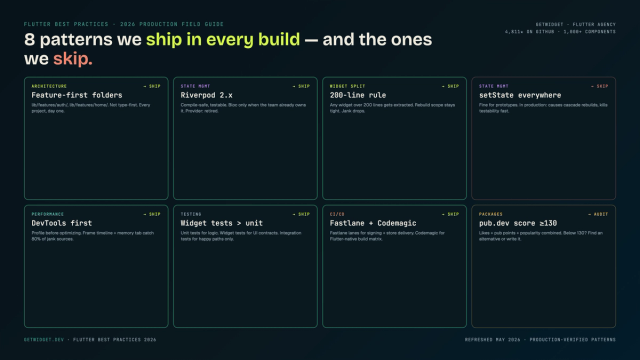
Flutter Mobile App Development: A 2026 Production Field Guide
How we structure Flutter projects at GetWidget in 2026: feature-first layout, Riverpod defaults, Dart 3 records and sealed classes, Material 3 theming, the 200-line widget rule, performance diagnosis, CI/CD pipelines, and the production pitfalls that bite teams after launch.
Top 10 Best Flutter List Tile Widgets: Patterns, Variants and M3 Migration (2026)
Top 10 Flutter ListTile widgets for clean rows with leading and trailing icons, titles, and subtitles — with code examples and GetWidget's GFListTile.

Top 10 Best Flutter AppBar Widgets: SliverAppBar, M3 Variants and Migration (2026)
Top 10 Flutter AppBar widgets to build sticky top toolbars — title styling, action buttons, theming, and GetWidget's GFAppBar with code examples.