Flutter NavigationBar vs TabBar vs BottomNavigationBar: The 2026 Production Guide
TabBar, NavigationBar (Material 3), BottomNavigationBar, or CupertinoTabBar — pick the right Flutter tab widget before the architecture gets locked in.
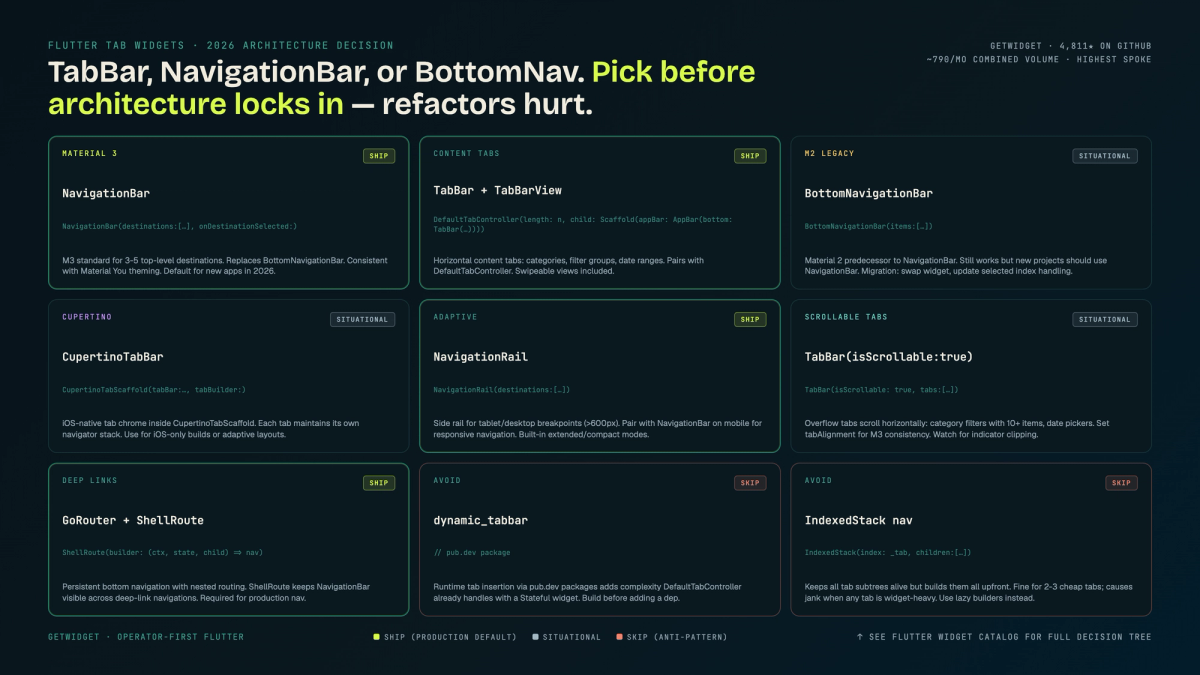
Flutter NavigationBar vs TabBar: The 2026 Production Guide
Material 3 renamed and redesigned the bottom nav. Here is which flutter navigation bar widget to use now, when the legacy one still makes sense, and how to avoid the state rebuild trap.
Flutter 3.16 shipped Material 3 as the default theme. That change quietly made a significant portion of flutter navigation bar tutorials on the first page of Google wrong. BottomNavigationBar, the widget in virtually every "Flutter bottom nav" post published before late 2024, is now the legacy option — Material 3 ships the new NavigationBar widget alongside the M3 NavigationDestination API. This guide is the decision tree our team uses today, including when the legacy BottomNavigationBar still wins.
Our team maintains the GetWidget open-source UI kit (4,811 stars, 23K monthly pub.dev downloads) and has shipped Flutter across 10 industries. Navigation is one of the highest-frequency build decisions we face. In our flutter widget catalog we cover the 12 production widgets our team trusts most. Tab and navigation widgets form a category of their own because the choice is not just cosmetic. It affects your state architecture, your deep-link setup, and how much Cupertino vs Material split work you carry on iOS.
This guide covers TabBar, TabBarView, DefaultTabController, BottomNavigationBar, NavigationBar, CupertinoTabBar, NavigationRail, and NavigationDrawer. We have included the concrete code for each, the real trade-offs we have hit in production, and a decision matrix you can use when the design hands you a nav spec and you need an answer before the next standup.
Flutter's four tab/navigation patterns (and why the docs are confusing)
The Flutter docs surface tab navigation across at least three separate sections: the Material component library, the Cupertino component library, and the cookbook. None of them include a side-by-side guide explaining when to use which one. If you search "flutter tabbar" you get the API reference. If you search "flutter navigation bar" you might land on docs for NavigationBar (M3), or BottomNavigationBar (legacy), depending on which cookbook page the search engine indexed.
The taxonomy is simpler than the docs make it look. Flutter offers four distinct tab/navigation widget families:
First, TabBar plus TabBarView handles top-of-screen or mid-screen horizontal tabs within a page or section. Second, NavigationBar (M3) and its predecessor BottomNavigationBar handle bottom navigation between top-level app destinations. Third, CupertinoTabBar wraps iOS-style bottom navigation with platform-native semantics. Fourth, NavigationRail and NavigationDrawer address wider-screen or drawer-pattern navigation where bottom tabs become awkward.
The confusion comes from mixing these up. TabBar goes at the top (in an AppBar or below it). NavigationBar goes at the bottom as a Scaffold bottomNavigationBar property. They serve different UI conventions and different use cases. Choosing TabBar when the design calls for a bottom nav, or vice versa, is not a tweakable mistake. It means a rebuild.
TabBar + TabBarView: the flutter tabbar top-of-screen controller
TabBar is the horizontal row of tab labels, typically placed in the AppBar's bottom slot or directly below the app bar. TabBarView is the scrollable body that shows the content for the selected tab. They communicate through a TabController, which you either create manually or inherit from a DefaultTabController ancestor.
DefaultTabController is the right starting point for most apps. You wrap your Scaffold with it, provide a length matching your tab count, and both TabBar and TabBarView automatically find the controller via context. No manual dispose, no manual sync:
DefaultTabController(
  length: 3,
  child: Scaffold(
    appBar: AppBar(
      title: const Text('Flutter Tabs'),
      bottom: const TabBar(
        tabs: [
          Tab(icon: Icon(Icons.home), text: 'Home'),
          Tab(icon: Icon(Icons.search), text: 'Search'),
          Tab(icon: Icon(Icons.person), text: 'Profile'),
        ],
      ),
    ),
    body: const TabBarView(
      children: [
        HomeTab(),
        SearchTab(),
        ProfileTab(),
      ],
    ),
  ),
);
When you need explicit control, use a TabController directly in a StatefulWidget with SingleTickerProviderStateMixin. This lets you programmatically jump to a tab, listen to index changes, or animate custom indicators:
class MyTabScreen extends StatefulWidget {
  const MyTabScreen({super.key});
  @override
  State<MyTabScreen> createState() => _MyTabScreenState();
}

class _MyTabScreenState extends State<MyTabScreen>
    with SingleTickerProviderStateMixin {
  late final TabController _controller;

  @override
  void initState() {
    super.initState();
    _controller = TabController(length: 3, vsync: this);
    _controller.addListener(() {
      if (!_controller.indexIsChanging) {
        // Tab settled — fire analytics or fetch data
        debugPrint('Tab: ${_controller.index}');
      }
    });
  }

  @override
  void dispose() {
    _controller.dispose(); // required — do not skip
    super.dispose();
  }

  @override
  Widget build(BuildContext context) {
    return Scaffold(
      appBar: AppBar(
        bottom: TabBar(
          controller: _controller,
          tabs: const [
            Tab(text: 'Orders'),
            Tab(text: 'Returns'),
            Tab(text: 'History'),
          ],
        ),
      ),
      body: TabBarView(
        controller: _controller,
        children: const [OrdersTab(), ReturnsTab(), HistoryTab()],
      ),
    );
  }
}GetWidget's GFTabBar wraps Flutter's TabBar with pre-built tab shape variants, badge support, and consistent padding across its design system. If your team is already using the GetWidget UI kit, GFTabBar saves the overhead of writing custom tab indicator and style logic from scratch. The controller API is identical to Flutter's standard TabController so you do not need to relearn anything.
BottomNavigationBar: the legacy bottom nav (still useful, here is when)
BottomNavigationBar predates Material 3 and ships as a Scaffold.bottomNavigationBar property. It supports two display types: fixed (all items visible, equal width) and shifting (selected item expands, others shrink). It handles between two and five items well.
We still encounter BottomNavigationBar in two situations: legacy apps where the migration cost to NavigationBar outweighs the visual gain, and apps targeting Android and iOS where the engineering team has tuned BottomNavigationBar's precise pixel geometry against a design system that predates M3. Rebuilding the nav to match NavigationBar's different padding and indicator shapes would break pixel-perfect designs.
For new apps, start with NavigationBar. For apps already in production on BottomNavigationBar, plan the migration to NavigationBar in a dedicated design sprint so it does not sneak into a sprint with unrelated scope.
NavigationBar (Material 3): the flutter navigation bar recommendation for 2026
NavigationBar is the M3 redesign of BottomNavigationBar. The visual changes are not subtle: NavigationBar uses a pill-shaped indicator behind the selected icon, taller height (80dp by default), and labels that appear below all destinations simultaneously rather than only below the selected one (in fixed mode).
Our team migrated a 4-tab ecommerce app from BottomNavigationBar to NavigationBar in Flutter 3.7. The things that broke: custom selectedItemColor and unselectedItemColor had no direct equivalent (NavigationBar uses indicatorColor and selectedIconTheme/unselectedIconTheme from NavigationBarThemeData), and the height change shifted the layout on screens with custom bottom padding for safe areas. Both were fixable inside a day, but they were not zero-effort.
class _AppState extends State<App> {
  int _selectedIndex = 0;

  @override
  Widget build(BuildContext context) {
    return Scaffold(
      body: IndexedStack(
        index: _selectedIndex,
        children: const [HomeScreen(), SearchScreen(), ProfileScreen()],
      ),
      bottomNavigationBar: NavigationBar(
        selectedIndex: _selectedIndex,
        onDestinationSelected: (index) {
          setState(() => _selectedIndex = index);
        },
        destinations: const [
          NavigationDestination(
            icon: Icon(Icons.home_outlined),
            selectedIcon: Icon(Icons.home),
            label: 'Home',
          ),
          NavigationDestination(
            icon: Icon(Icons.search_outlined),
            selectedIcon: Icon(Icons.search),
            label: 'Search',
          ),
          NavigationDestination(
            icon: Icon(Icons.person_outline),
            selectedIcon: Icon(Icons.person),
            label: 'Profile',
          ),
        ],
      ),
    );
  }
}
Note the IndexedStack in the body. It preserves the widget tree for each tab so scroll positions and form state survive tab switches. We cover this in depth in the state preservation section below.
NavigationBar also integrates with M3's color scheme automatically. Set colorScheme in your ThemeData and NavigationBar picks up the correct surface and indicator colors without manual overrides. This is a real maintenance win on large apps where theme changes propagate without touching individual widget parameters.
CupertinoTabBar: iOS-native tab navigation in flutter tab widget form
CupertinoTabBar is the Cupertino-library equivalent of BottomNavigationBar. It pairs with CupertinoTabScaffold, which handles the full tab scaffold including persistent navigator stacks per tab. This is the most important structural difference from Material tabs: each CupertinoTabScaffold tab gets its own Navigator, which means you get independent navigation history per tab out of the box.
If your app targets iOS-first and you want native feel, CupertinoTabScaffold with CupertinoTabBar is the correct choice. You get the translucent blur background, SF Symbols compatibility (via CupertinoIcons), and the standard iOS tab animation. The trade-off is that Cupertino widgets do not respond to MaterialApp theme tokens, so your color scheme needs to be applied separately to the CupertinoThemeData.
CupertinoTabScaffold(
  tabBar: CupertinoTabBar(
    items: const [
      BottomNavigationBarItem(
        icon: Icon(CupertinoIcons.home),
        label: 'Home',
      ),
      BottomNavigationBarItem(
        icon: Icon(CupertinoIcons.search),
        label: 'Search',
      ),
      BottomNavigationBarItem(
        icon: Icon(CupertinoIcons.person),
        label: 'Profile',
      ),
    ],
  ),
  tabBuilder: (context, index) {
    return CupertinoTabView(
      builder: (context) {
        switch (index) {
          case 0: return const HomeScreen();
          case 1: return const SearchScreen();
          default: return const ProfileScreen();
        }
      },
    );
  },
);
CupertinoTabScaffold does not use IndexedStack directly; the tab builder creates widget trees lazily, but once built they persist in memory as long as the tab scaffold is alive. The per-tab Navigator handles back-button behavior, which is a meaningful UX difference from Material's single-navigator pattern.
NavigationDrawer and NavigationRail: when flutter tabs are not enough
NavigationBar and CupertinoTabBar work on phones at portrait orientation. Once you build for tablet, foldable, or web, bottom tabs become spatially wasteful and accessibility awkward. Two M3 widgets replace them at larger breakpoints: NavigationRail for medium-width screens (a vertical column of destinations on the left) and NavigationDrawer for anything with enough room for an off-screen panel.
The standard adaptive pattern we use: below 600dp show NavigationBar at the bottom, between 600dp and 840dp switch to NavigationRail on the left with no labels (icon-only), and above 840dp show NavigationDrawer permanently. In Flutter you implement this with LayoutBuilder wrapping your Scaffold:
LayoutBuilder(builder: (context, constraints) {
  if (constraints.maxWidth >= 840) {
    return Scaffold(
      body: Row(
        children: [
          NavigationDrawer(
            selectedIndex: _selectedIndex,
            onDestinationSelected: _onDestinationSelected,
            children: _navDestinations,
          ),
          Expanded(child: _screens[_selectedIndex]),
        ],
      ),
    );
  } else if (constraints.maxWidth >= 600) {
    return Scaffold(
      body: Row(
        children: [
          NavigationRail(
            selectedIndex: _selectedIndex,
            onDestinationSelected: _onDestinationSelected,
            destinations: _railDestinations,
          ),
          Expanded(child: _screens[_selectedIndex]),
        ],
      ),
    );
  } else {
    return Scaffold(
      body: _screens[_selectedIndex],
      bottomNavigationBar: NavigationBar(
        selectedIndex: _selectedIndex,
        onDestinationSelected: _onDestinationSelected,
        destinations: _navDestinations,
      ),
    );
  }
});
The flutter bottom navigation pattern described above assumes a single shared _selectedIndex. All three widgets use the same selectedIndex and onDestinationSelected callback, so the state logic is identical regardless of which nav chrome is rendering.
Persistent vs rebuilding tabs: managing state across flutter tabview switches
By default, TabBarView builds and destroys tab content as you switch between tabs. This is correct for simple content that has no scroll state or form state to preserve. It becomes a problem as soon as a tab contains a list the user scrolled halfway through, or a filter the user set, or a partially filled form.
Two approaches address state preservation in flutter tabs. The first is AutomaticKeepAliveClientMixin, which you add to the tab content widget's state:
class SearchTab extends StatefulWidget {
  const SearchTab({super.key});
  @override
  State<SearchTab> createState() => _SearchTabState();
}

class _SearchTabState extends State<SearchTab>
    with AutomaticKeepAliveClientMixin {
  final _scrollController = ScrollController();

  @override
  bool get wantKeepAlive => true;

  @override
  Widget build(BuildContext context) {
    super.build(context); // required by the mixin
    return ListView.builder(
      controller: _scrollController,
      itemCount: 200,
      itemBuilder: (context, index) => ListTile(title: Text('Item $index')),
    );
  }

  @override
  void dispose() {
    _scrollController.dispose();
    super.dispose();
  }
}
The second approach is IndexedStack, which we showed in the NavigationBar example. IndexedStack keeps all child widgets alive simultaneously but only renders the selected one. It is simpler than AutomaticKeepAliveClientMixin for NavigationBar patterns because there is no mixin required in each child. The trade-off is memory: all tabs are built on first show and stay in memory permanently. For tabs with heavy data or image lists, AutomaticKeepAliveClientMixin is more memory-efficient because Flutter can still reclaim memory if needed.
Animated transitions between flutter tabs
TabBarView uses a PageView under the hood, which gives you a horizontal swipe transition by default. If you want a fade, a slide from bottom, or a scale transition, you need to bypass the default PageView behavior.
The simplest pattern for custom tab transitions is to drop TabBarView and manage tab content yourself with an AnimatedSwitcher or a PageRouteBuilder inside your IndexedStack pattern. Since you are already tracking _selectedIndex in state for NavigationBar, adding AnimatedSwitcher around the displayed screen costs one widget wrap:
AnimatedSwitcher(
  duration: const Duration(milliseconds: 200),
  transitionBuilder: (child, animation) {
    return FadeTransition(opacity: animation, child: child);
  },
  child: KeyedSubtree(
    key: ValueKey(_selectedIndex),
    child: _screens[_selectedIndex],
  ),
);
The ValueKey is required. Without it, AnimatedSwitcher cannot tell when the child changed and skips the animation entirely. We have hit this on almost every project that first wires up AnimatedSwitcher for tab switching.
Custom tab indicator: styling flutter tabbar beyond the default underline
Flutter's default TabBar shows a colored underline as the selected indicator. Most design systems want something different: a pill shape, a dot below the icon, a full background highlight, or a custom painted shape. Flutter exposes three ways to change this.
The quickest option is the indicator parameter on TabBar, which accepts any BoxDecoration. A BoxDecoration with borderRadius gives you the pill shape. The second option is a custom Decoration class implementing the TabIndicator interface for fully custom painting. The third option is indicator: const UnderlineTabIndicator() with a custom borderSide to change just the thickness and color while keeping the underline.
TabBar(
  controller: _controller,
  indicator: BoxDecoration(
    borderRadius: BorderRadius.circular(24),
    color: Theme.of(context).colorScheme.primaryContainer,
  ),
  indicatorSize: TabBarIndicatorSize.tab,
  labelColor: Theme.of(context).colorScheme.onPrimaryContainer,
  unselectedLabelColor: Theme.of(context).colorScheme.onSurfaceVariant,
  tabs: const [
    Tab(text: 'All'),
    Tab(text: 'Active'),
    Tab(text: 'Closed'),
  ],
);
Setting indicatorSize to TabBarIndicatorSize.tab makes the indicator fill the tab width rather than just underline the label text. Combined with a BorderRadius, this is the pill shape visible in many M3 design mockups. It is two lines of code and no custom painter required.
Decision matrix: which flutter navigation bar or tab widget for your architecture
Choosing the wrong navigation widget early is the most common Flutter architecture mistake we have seen in code reviews. The comparison below covers the four main options against the factors that matter at the architecture decision point. For broader context on Material 3 adoption across frameworks, see our overview of frontend development trends covering how M3 is reshaping cross-platform UI conventions.
| Feature | TabBar + TabBarView | BottomNavigationBar | NavigationBar (M3) | CupertinoTabBar |
|---|---|---|---|---|
| Position | Top (AppBar bottom) | Bottom | Bottom | Bottom (iOS) |
| Material version | M2 + M3 | M2 (maintained) | M3 only | Cupertino (iOS) |
| Per-tab Navigator | No | No | No | Yes (CupertinoTabView) |
| State preservation | AutomaticKeepAlive / IndexedStack | IndexedStack | IndexedStack | Built-in per tab |
| Adaptive (tablet) | Pair with NavigationRail | Pair with NavigationRail | Pair with NavigationRail | No — iOS only |
| Theme integration | TabBarTheme | BottomNavigationBarTheme | NavigationBarTheme (M3 color scheme) | CupertinoThemeData |
| Recommended for new apps | Yes (top tabs) | No (use NavigationBar) | Yes (bottom nav, Android) | Yes (iOS-first) |
The summary guidance from our team: use TabBar for in-page section switching (content categories, filter views, document sections). Use NavigationBar for top-level destination switching in Android-first or cross-platform Material apps. Use CupertinoTabBar when the app is iOS-first and needs native iOS chrome. Use BottomNavigationBar only when maintaining an existing M2 app where migration cost is not justified.
| Use Case | TabBar | BottomNavigationBar | NavigationBar (M3) | CupertinoTabBar | |
|---|---|---|---|---|---|
| New cross-platform app | Content sections | Avoid | Yes | iOS only | |
| Existing M2 app | Content sections | Keep, no change needed | Migrate in design sprint | iOS only | |
| Tablet / foldable | With NavigationRail | With NavigationRail | With NavigationRail | No | |
| iOS-first native feel | With CupertinoTabScaffold | No | No | Yes | |
| Deep-link per tab | GoRouter branch | GoRouter branch | GoRouter branch | CupertinoTabView Navigator |
FAQ: flutter tabbar, flutter tabs, and flutter tab widget questions
What is TabBar in Flutter?
TabBar is a Material widget that displays a horizontal row of tab labels, typically placed in an AppBar's bottom slot or as a standalone widget. It uses a TabController to sync the selected tab with a TabBarView body that shows the content for each tab. TabBar handles scroll animation, indicator painting, and touch handling. The simplest setup wraps both TabBar and TabBarView in a DefaultTabController ancestor.
What is the difference between TabBar and TabBarView?
TabBar is the visual row of tab labels. TabBarView is the body widget that shows the content for the currently selected tab. They communicate through a shared TabController. TabBar handles selection, TabBarView handles display. You need both: one without the other has no selection mechanism or visible content respectively.
How do I make a Flutter TabBar scrollable?
Set isScrollable: true on the TabBar widget. By default, TabBar distributes tab labels evenly across the available width (fixed mode). Scrollable mode lets the tabs overflow the bar width and the user can swipe horizontally to reveal additional tabs. Use scrollable mode when you have more than four or five tabs, or when tab labels are long enough to be clipped in fixed mode.
What is the difference between BottomNavigationBar and NavigationBar in Flutter?
BottomNavigationBar is the Material 2 bottom navigation widget, still maintained but not recommended for new apps. NavigationBar is the Material 3 redesign with a pill-shaped selection indicator, taller height, and automatic M3 color scheme integration. NavigationBar uses NavigationDestination children instead of BottomNavigationBarItem, and its theming goes through NavigationBarThemeData rather than BottomNavigationBarThemeData. For new apps, start with NavigationBar.
How do I preserve tab state so content does not rebuild on every tab switch?
Two options: add AutomaticKeepAliveClientMixin to the tab content widget's State class and override wantKeepAlive to return true (call super.build(context) at the start of build), or wrap your tab screens in an IndexedStack widget keyed by the selected index. AutomaticKeepAliveClientMixin works inside TabBarView. IndexedStack works for NavigationBar and BottomNavigationBar patterns where you manage the selected index yourself.
Navigation widget choices sit at the intersection of design system, platform, and state architecture. Getting the right widget in place at the start of a sprint is the difference between a clean codebase and an accumulation of patches around the wrong abstraction. The framework gives you the tools. The work is matching the right one to your specific requirements.
Our team ships Flutter across production apps in healthcare, fintech, and ecommerce. If you are planning a new navigation architecture or evaluating a migration from BottomNavigationBar to NavigationBar, the patterns above are the ones we use day-to-day. The specifics (state preservation strategy, adaptive breakpoints, custom indicator shape) vary by project, but the underlying widget selection logic holds across all of them.

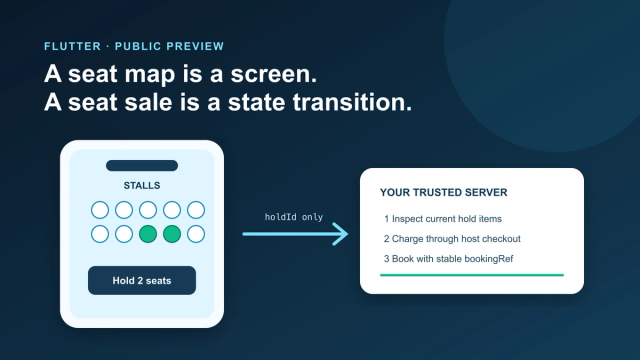
Add an Interactive Seat Map to Flutter: SDK, Holds, Checkout
Mount the public-preview SeatLayer SDK in Flutter, keep holds and payment server-side, and survive backgrounding, expiry, and 409 conflicts.
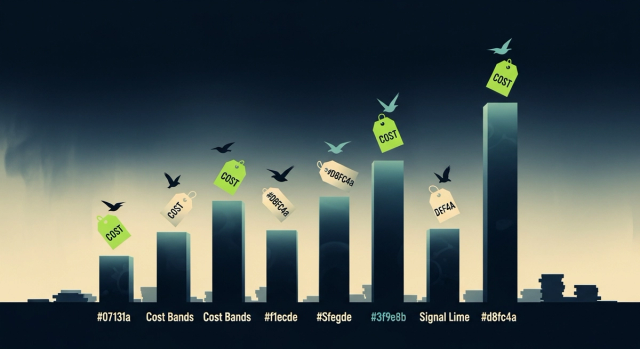
How Much Does It Cost to Hire a Flutter Developer in 2026? Rates, Salary Bands, and App Development Cost
How much does it cost to hire a Flutter developer? $15–$150/hr depending on region and seniority — breakdown by India, US, and Eastern Europe rates.
Top Flutter App Development Companies in 2026 — A Buyer's Shortlist (India + Global)
Top 10 Flutter app development companies in India (2026) — vetted by portfolio, scale, pricing, and Flutter delivery experience for production builds.

AI in Banking — Use Cases, Named Bank Precedents, and Eval Methodology (2026)
How AI is used in banking — fraud detection, credit scoring, customer service automation, RegTech, and the use cases banks are deploying right now.