Flutter Rating: Build vs Package vs GetWidget — A 2026 Comparison
flutter_rating_bar package, a custom DIY star widget, or the GetWidget component — compare Flutter rating bar options with production trade-offs and code examples.
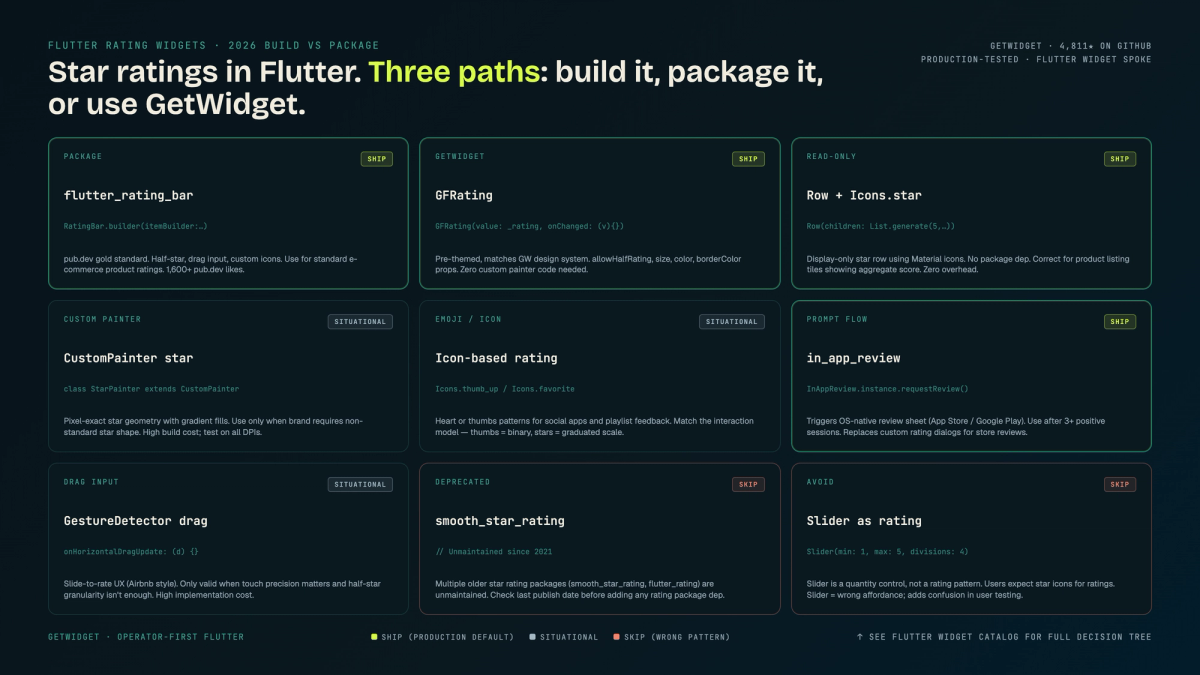
Our team ships flutter rating UIs across three project types: service booking apps where users rate providers after a job, e-commerce apps where buyers rate products, and SaaS dashboards where users score support interactions. Each scenario lands on the same three-way decision: use the dominant package (flutter_rating_bar), build a custom star widget from scratch, or reach for our open-source GetWidget GFRating component. This guide walks all three with code, trade-offs, and the production gotchas we've hit.
The Flutter ecosystem has a dominant answer: `flutter_rating_bar`. It holds the top pub.dev slot for this category and most tutorials stop there. What those tutorials skip is the decision logic between three real options, the v4 API break that still catches developers by surprise, and the accessibility gap that fails screen reader audits. If you've searched for a flutter review widget for a product catalog, this post also covers the aggregate display and submission flow patterns.
This post covers all three: the DIY route using GestureDetector and IconButton, the flutter_rating_bar package, and GetWidget's GFRating component. We'll include the fractional-rating patterns, accessibility fixes, read-only display states, and the decision frame we apply on our own builds.
Flutter rating widgets: three approaches
Three meaningful paths exist when you need a flutter rating bar or star picker. None is universally correct. The right pick depends on your design system requirements, your accessibility obligations, and whether you need fractional input or whole-number input only.
Full control over gesture handling, icon shape, color, and state. No pub.dev dependency. You own the accessibility layer (Semantics wrapping is your job). Best for design systems with custom icon shapes or strict dependency audits. Takes ~60-80 lines of production code. We use this on designs where the rating icon is a non-standard SVG that doesn't match star or heart presets.
Community default. Fractional support, item builder pattern, RTL support, read-only mode via ignoreGestures. Handles the vast majority of standard product review UIs without custom code. Caveat: v4 changed the itemBuilder API from a two-parameter closure to a one-parameter builder; apps upgrading from v3 will see a compile error. Check your pubspec version before copying any v3 tutorial code. Our default for most projects where the icon is a standard star or heart.
The third option, GetWidget GFRating, sits between the two. It's part of the open-source GetWidget Flutter UI Kit, covered in our broader flutter widget catalog. GFRating builds on flutter_rating_bar's core but adds a consistent API surface that plugs into GetWidget's design token system. If you're already using GetWidget components elsewhere in the app, GFRating is the faster path than configuring flutter_rating_bar from scratch.
One distinction that matters early: interactive rating bars (user selects a value) and display-only rating bars (showing an aggregate average) have different state management needs. We'll cover both patterns.
flutter_rating_bar package: setup, basic usage, and key options
Add the dependency to your pubspec.yaml. At the time of writing, the current stable line is v4.x. If your project was initialized before mid-2023, confirm you're on v4 before using any code in this post.
# pubspec.yaml
dependencies:
  flutter_rating_bar: ^4.0.1
A minimal interactive flutter rating bar with flutter_rating_bar looks like this:
// Basic interactive star rating — flutter_rating_bar v4
import 'package:flutter_rating_bar/flutter_rating_bar.dart';

double _currentRating = 3.0;

RatingBar.builder(
  initialRating: _currentRating,
  minRating: 1,
  direction: Axis.horizontal,
  allowHalfRating: true,
  itemCount: 5,
  itemPadding: const EdgeInsets.symmetric(horizontal: 4.0),
  itemBuilder: (context, _) => const Icon(
    Icons.star,
    color: Colors.amber,
  ),
  onRatingUpdate: (rating) {
    setState(() => _currentRating = rating);
  },
);
Key parameters worth knowing: `allowHalfRating: true` enables half-star selection. `direction: Axis.vertical` is available but rarely needed in product UIs. `tapOnlyMode: true` disables swipe-to-rate and forces tap-to-select, which performs better on dense list screens where vertical scroll competes with horizontal swipe.
For read-only aggregate display, set `ignoreGestures: true`. We cover this in detail in the read-only section below. One thing we've hit in production: `ignoreGestures: true` does not disable the visual press state on older Android versions without also setting `itemSize` explicitly. Set both.
Building a custom flutter star rating bar from scratch
The DIY route is worth understanding even if you end up using a package. Knowing how gesture handling works inside a row of icons helps you debug edge cases. We build the custom flutter star rating bar using a Row of IconButton widgets, where each button sets the selected index in state.
// Custom star rating bar — no package dependency
class StarRatingBar extends StatefulWidget {
  final int maxStars;
  final ValueChanged<int> onRatingChanged;

  const StarRatingBar({
    super.key,
    this.maxStars = 5,
    required this.onRatingChanged,
  });

  @override
  State<StarRatingBar> createState() => _StarRatingBarState();
}

class _StarRatingBarState extends State<StarRatingBar> {
  int _selectedRating = 0;

  @override
  Widget build(BuildContext context) {
    return Row(
      mainAxisSize: MainAxisSize.min,
      children: List.generate(widget.maxStars, (index) {
        final starIndex = index + 1;
        return Semantics(
          label: 'Rate $starIndex out of ${widget.maxStars}',
          button: true,
          child: IconButton(
            icon: Icon(
              starIndex <= _selectedRating
                  ? Icons.star
                  : Icons.star_border,
              color: Colors.amber,
            ),
            onPressed: () {
              setState(() => _selectedRating = starIndex);
              widget.onRatingChanged(starIndex);
            },
          ),
        );
      }),
    );
  }
}
Notice the Semantics wrapper around each IconButton. Without it, screen readers announce each star as a generic button with no context. We've seen this fail an accessibility audit on an e-commerce build where the product review UI had no meaningful labels on the rating controls.
For custom shapes, swap Icons.star and Icons.star_border for any icon or SVG path. Our design team sometimes uses a custom brand icon (a shield, a flame, a tick) instead of a star. The DIY approach handles that without package limitations. flutter_rating_bar's itemBuilder also accepts arbitrary widgets, so both routes support custom shapes.
The main trade-off with the DIY approach: fractional (half-star) handling requires custom gesture detection. You need GestureDetector wrapping the Row, calculate the position relative to total width, and map that to a decimal value. It's about 40 lines of layout math. If you need half-star input, flutter_rating_bar's `allowHalfRating` is faster to ship and well-tested.
GetWidget GFRating: what it adds over stock flutter_rating_bar
In our e-commerce GetWidget builds, we default to GFRating when the app already uses other GetWidget components. The API is deliberately close to flutter_rating_bar, so the learning curve is minimal. What GFRating adds is alignment with GetWidget's GFSize and GFColor system, which keeps your design tokens in one place.
// GFRating from the GetWidget Flutter UI Kit
import 'package:getwidget/getwidget.dart';

double _rating = 3.5;

GFRating(
  value: _rating,
  size: GFSize.MEDIUM,
  color: GFColors.WARNING,
  borderColor: GFColors.WARNING,
  allowHalfRating: true,
  onChanged: (value) {
    setState(() => _rating = value);
  },
);
GFSize.MEDIUM maps to the same sizing token used across GFButton, GFBadge, and GFAvatar. You change the size constant once in your theme config, it updates across all components. With raw flutter_rating_bar, you're passing itemSize as a double and keeping it in sync manually.
The GetWidget UI Kit is MIT licensed and free on pub.dev. If you're only using GFRating, the package overhead is minor. If you're using GFButton, GFCard, and GFCarousel alongside it, the shared token system pays off across the whole component surface. We use GFRating on almost every project that has any review or feedback UI, since we're pulling in GetWidget for other reasons anyway.
Fractional ratings and half-star display
Fractional ratings split into two scenarios: displaying a fractional aggregate (e.g., average of 4.3 from 240 reviews) and accepting fractional input (half-star taps). The UX decisions differ for each.
For aggregate display, fractional stars are almost always the right call. A 4.3 average displayed as either 4 or 5 whole stars loses precision. flutter_rating_bar handles this automatically when ignoreGestures is true and initialRating is 4.3. The half-fill rendering uses a ClipRect internally to show a partially filled icon. You get this for free.
For input, fractional ratings are a UX judgment call. Mobile screens have small tap targets. On a 5-star bar at 150px wide, a half-star target is about 15px, which is below Material's recommended 48dp minimum touch target. We've shipped half-star input on tablet layouts and desktop Flutter. On phone-sized screens, we default to whole-star input unless the product spec requires sub-integer precision. The Semantics label changes too: 'Rate 3 out of 5' is clearer to a screen reader than 'Rate 3.5 out of 5' for a casual review flow.
One precision issue we hit: when rounding a stored float for display, `4.333...` can render as either a half-star or not depending on floating point rounding. Explicitly round to one decimal before passing to the widget: `rating.toStringAsFixed(1)` then back to double. Avoids half-star flicker between builds on different platforms.
Read-only vs interactive flutter rating widget states
Most product screens need both states: an interactive bar on the submission form and a read-only display bar on the product card or review list. The code paths are almost the same. The difference is where state lives and whether gesture callbacks are wired.
For read-only display in flutter_rating_bar: pass `ignoreGestures: true`. The widget renders identically but absorbs no pointer events. For GFRating: pass `onChanged: null`. Both approaches produce a static star row that visually matches your interactive bar.
State management for the interactive case: on small widgets within a form, local StatefulWidget state (via setState) is fine. The onRatingUpdate callback fires on every change so you can update a local double. On larger submission flows where the rating is one field among many, lift state into your form state manager. We use Riverpod StateNotifier for multi-field submission forms: the rating update calls notifier.updateRating(value) alongside text field changes, and the submit button watches a combined validity state.
One pattern worth naming: the pre-filled interactive bar. On an edit-review screen, the user comes back to change their existing rating. Pass the stored rating as `initialRating`. Both flutter_rating_bar and GFRating accept initial values and let the user override them. No custom logic needed.
Accessibility: flutter rating bar and screen reader support
Rating widgets fail accessibility checks more often than most UI components. The failure mode is consistent: the screen reader announces 'button, button, button' five times without any context about what scale is being used or what value is currently selected.
The fix requires two Semantics wrappers: one around the whole bar to announce the current state, and one per icon to make each tap target meaningful.
// Accessible flutter rating bar with Semantics labels
Semantics(
  label: 'Product rating: $_currentRating out of 5 stars',
  slider: true, // announces as a slider to screen readers
  value: '$_currentRating',
  increasedValue: '${(_currentRating + 1.0).clamp(1, 5)}',
  decreasedValue: '${(_currentRating - 1.0).clamp(1, 5)}',
  onIncrease: () => setState(
    () => _currentRating = (_currentRating + 1.0).clamp(1, 5),
  ),
  onDecrease: () => setState(
    () => _currentRating = (_currentRating - 1.0).clamp(1, 5),
  ),
  child: RatingBar.builder(
    initialRating: _currentRating,
    itemCount: 5,
    itemBuilder: (context, _) => const Icon(
      Icons.star,
      color: Colors.amber,
      semanticLabel: '', // suppress per-star label; outer Semantics owns it
    ),
    onRatingUpdate: (rating) {
      setState(() => _currentRating = rating);
    },
  ),
);
The `slider: true` flag on the outer Semantics is the key move. VoiceOver and TalkBack both handle sliders with swipe-up/swipe-down gestures, making the rating adjustable without requiring exact tap targets. By supplying `onIncrease` and `onDecrease` callbacks, you give screen reader users a reliable way to adjust the value.
For read-only display bars, the Semantics wrapper is simpler: wrap the bar with `excludeSemantics: true` on the children (so individual stars are silent) and provide a single label on the outer Semantics: '4.3 out of 5 stars, 240 reviews'. Our team chose this pattern for the Africell Ghana project's service feedback flow, where we were targeting WAI-ARIA compliance for a government-adjacent client.
flutter_rating_bar doesn't inject Semantics by default. GFRating adds a basic label but doesn't expose the slider pattern. For any app with an accessibility mandate, add the outer Semantics wrapper regardless of which package you use.
Real-world patterns: in-app review prompts vs product review UIs
Two distinct patterns appear across our Flutter builds. They have different UX logic even though both use a star rating bar widget.
In-app review prompt (NPS-style)
This is the 'How was your experience?' prompt that surfaces after a transaction or session. It's usually a modal or a bottom sheet. The user rates once, submits, and it disappears. Key requirements: single-use state (no pre-filled value), submit button disabled until a rating is selected, and an optional comment field below the stars.
State management here is local. We initialize `double? _rating = null` and conditionally enable the submit button when `_rating != null`. On submit, we fire the API call and close the dialog or pop the sheet. No global state needed.
Product review UI (aggregate + individual ratings)
This pattern is more complex. The same screen shows an aggregate display (read-only, fractional), a sorted list of individual ratings (read-only, whole-star per review), and optionally a submission form for new reviews. You need three distinct widget instances: one display bar for the aggregate, one per review row, and one interactive bar in the submission form.
We keep the submission form state in a local StatefulWidget scoped to the form widget, not the whole screen. The aggregate display is driven by a Riverpod FutureProvider that fetches review stats. The review list is a SliverList inside a CustomScrollView. This structure keeps each concern isolated. For the broader component and state patterns behind this kind of screen architecture, the frontend development trends guide covers the Flutter-specific rendering and state patterns we lean on across our builds.
One data representation note: store ratings as integers or fixed-point decimals in your API, not floats. A stored 4.5 from a float column can come back as 4.499999... and render incorrectly. We've seen this in three separate client API schemas. Round before storing, or store as an integer with an implicit decimal (45 = 4.5).
Decision framework: which flutter rating widget for which use case
The right choice depends on four variables: icon shape, fractional input requirement, existing package dependencies, and accessibility obligation level.
| Scenario | Recommended approach | Reason |
|---|---|---|
| Standard star or heart icon, whole-number input only | flutter_rating_bar | Easiest setup, well-tested, no design complexity |
| Half-star input required, standard icon | flutter_rating_bar with allowHalfRating: true | Built-in half-fill rendering, gesture detection handled |
| App already uses GetWidget components | GFRating | Shared design tokens, consistent sizing with other GF components |
| Custom SVG icon or non-standard shape | DIY (GestureDetector + IconButton) | flutter_rating_bar itemBuilder accepts widgets, but custom shapes need precise sizing; DIY gives full control |
| Aggregate display only (no input) | flutter_rating_bar ignoreGestures:true or GFRating onChanged:null | Both work; pick whichever is already in your dependencies |
| Strict accessibility mandate (WAI-ARIA, VoiceOver/TalkBack pass required) | Any package + outer Semantics slider wrapper | No package handles a11y fully out of the box; add Semantics regardless of package choice |
Our default on new GetWidget projects: GFRating if we're pulling in the UI kit anyway. flutter_rating_bar if it's a standalone widget in an app that doesn't otherwise use GetWidget. DIY only when the icon is non-standard or the project has a hard constraint on third-party packages.
FAQ
What is the best flutter_rating_bar package for Flutter?
flutter_rating_bar by sarbagyastha is the community standard with the highest pub.dev like count in this category. It supports whole-star and half-star input, read-only mode via ignoreGestures, and custom icon widgets. For projects using the GetWidget UI Kit, GFRating is a strong alternative with integrated design tokens. For custom icon shapes, a DIY implementation using GestureDetector and IconButton gives the most control.
How do I make a flutter rating bar read-only?
With flutter_rating_bar, set ignoreGestures: true on the RatingBar.builder constructor. The bar renders identically but absorbs no pointer events. With GetWidget GFRating, pass onChanged: null. With a DIY implementation, remove the onPressed callbacks from each IconButton. For all three approaches, also update your Semantics label to omit any 'interactive' phrasing when the bar is in display-only mode.
How do I show half stars in a Flutter flutter star rating widget?
With flutter_rating_bar, set allowHalfRating: true on RatingBar.builder. The package handles the half-fill rendering with a ClipRect internally. For display of fractional aggregates (like 4.3 out of 5), pass a decimal value as initialRating with ignoreGestures: true. For half-star input on small phone screens, evaluate whether the touch target is large enough — half of a star icon often falls below Material's 48dp minimum.
How do I add a flutter rating bar with accessibility support for screen readers?
Wrap the rating bar in a Semantics widget with slider: true, and supply label, value, increasedValue, decreasedValue, onIncrease, and onDecrease. Pass an empty string as semanticLabel on each icon inside the itemBuilder to suppress duplicate announcements. Without this wrapper, VoiceOver and TalkBack announce each star as a generic 'button' with no value context. The flutter_rating_bar package and GFRating both require this external Semantics layer; neither adds it automatically.
What changed in flutter_rating_bar v4 vs v3?
The primary constructor changed from RatingBar() to RatingBar.builder(). The itemBuilder parameter in v4 uses a different signature than v3 tutorials may show. If you're copying code from older tutorials and seeing compile errors, check your pubspec for the version. Upgrade to v4.0.1 or later and use RatingBar.builder as your entry point. The v3 RatingBar() direct constructor still exists in some older packages but is not present in the current v4 stable release.
What is GFRating and how does it differ from flutter_rating_bar?
GFRating is a rating widget in the GetWidget Flutter UI Kit (MIT licensed, pub.dev/packages/getwidget). It wraps similar functionality to flutter_rating_bar but uses GetWidget's GFSize and GFColor token system. The main benefit is consistency: if you're using GFButton, GFBadge, or GFCard, GFRating sizes and colors stay in sync through the same token constants. For apps not using the GetWidget UI Kit, flutter_rating_bar is the simpler dependency.
When the build-vs-package call is actually a hiring call
Build-vs-package is moot if no one on your team owns Flutter deeply. You can hire a senior to ship this faster at $42/hr through our staffing arm. Same Getwidget Labs Pvt Ltd Org behind this UI kit, so the engineer you bring on is already fluent in the components above.

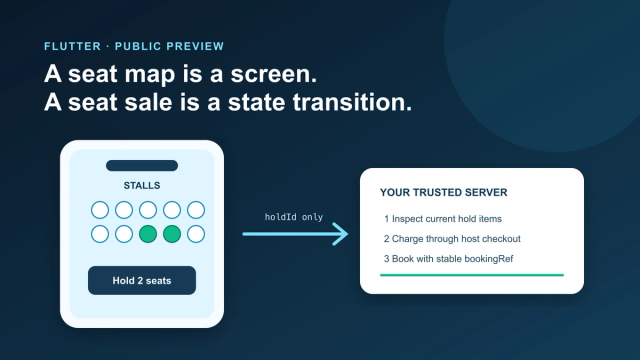
Add an Interactive Seat Map to Flutter: SDK, Holds, Checkout
Mount the public-preview SeatLayer SDK in Flutter, keep holds and payment server-side, and survive backgrounding, expiry, and 409 conflicts.
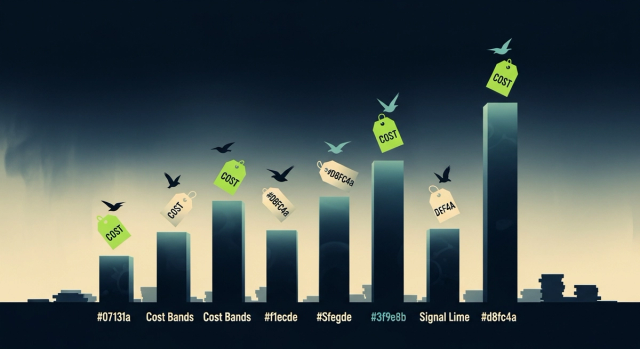
How Much Does It Cost to Hire a Flutter Developer in 2026? Rates, Salary Bands, and App Development Cost
How much does it cost to hire a Flutter developer? $15–$150/hr depending on region and seniority — breakdown by India, US, and Eastern Europe rates.
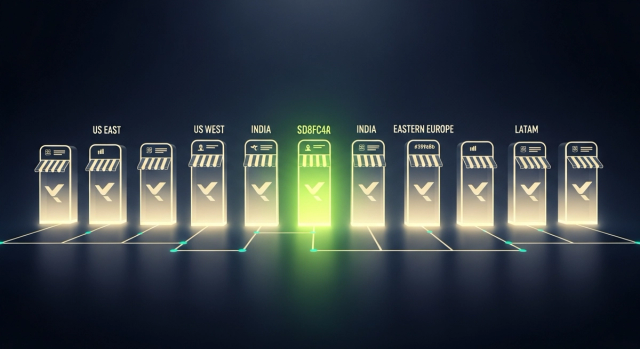
Top Flutter App Development Companies in 2026 — A Buyer's Shortlist (India + Global)
Top 10 Flutter app development companies in India (2026) — vetted by portfolio, scale, pricing, and Flutter delivery experience for production builds.

AI in Banking — Use Cases, Named Bank Precedents, and Eval Methodology (2026)
How AI is used in banking — fraud detection, credit scoring, customer service automation, RegTech, and the use cases banks are deploying right now.