Flutter Snackbar vs AlertDialog vs BottomSheet: Pick the Right Notification (2026)
AlertDialog, Snackbar, BottomSheet, or OverlayEntry — know which Flutter notification widget to reach for, with production code patterns and gotchas.
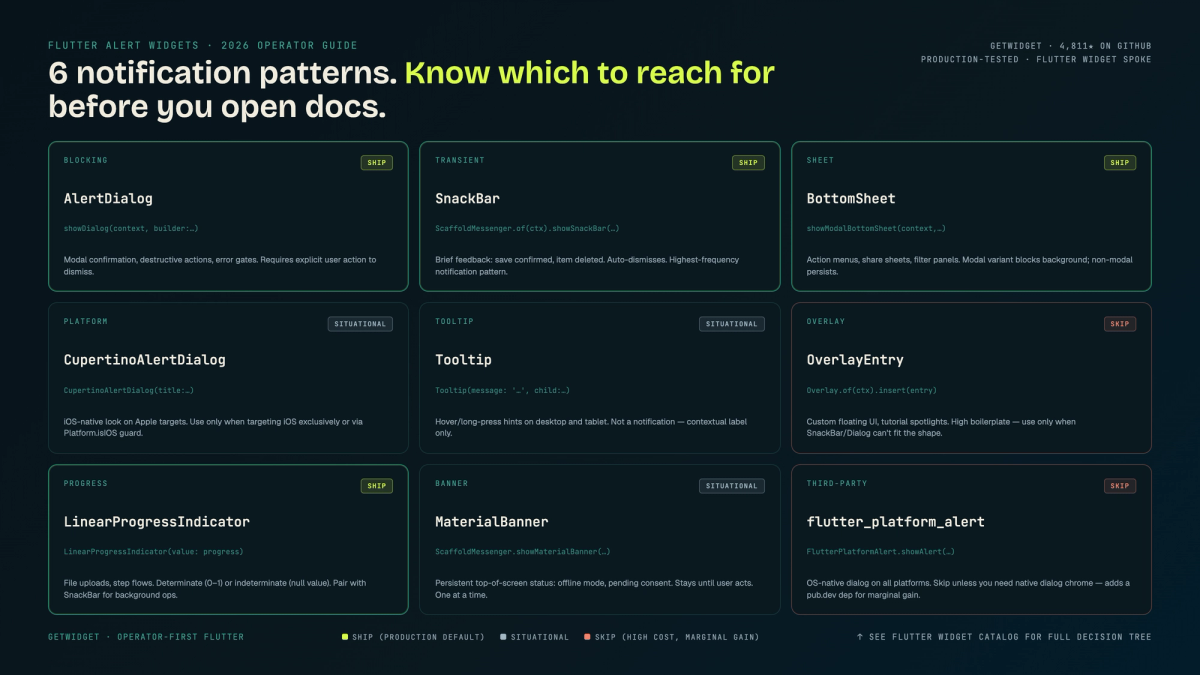
Flutter Snackbar, AlertDialog, BottomSheet, OverlayEntry — a Flutter app has seven distinct ways to interrupt or inform its users. Most developers know one or two. Plenty of production codebases handle every notification scenario with a single AlertDialog, called from wherever is convenient, stacked on top of itself when the user taps too fast. This guide is the decision tree our team uses: which notification widget belongs to which scenario, and why Snackbar is usually the first thing you should reach for.
Our team at GetWidget has shipped the open-source GetWidget Flutter UI Kit to 23K monthly pub.dev downloads and built Flutter apps across healthcare, fintech, legal, and ecommerce. We've learned which flutter alert widget to use in which exact context. More usefully, we know the production gotchas the official API docs don't bother documenting. This guide covers all of them.
Flutter's alert and notification widgets: the full list
Before getting into each widget, here's the complete roster from the Flutter SDK. We cover the first five in depth; Banner and OverlayEntry get their own sections because they're frequently overlooked.
| Widget | Blocking? | Scope | Best for |
|---|---|---|---|
These widgets all live inside Flutter's Material or Cupertino layers. If you want a broader view of the components our team ships regularly, our flutter widget catalog covers layout, scroll, form, and navigation widgets with the same production-first lens.
AlertDialog: the modal you reach for most
AlertDialog is the workhorse. In our GetWidget builds, the majority of interruption-level UX goes through it. AlertDialog and its Cupertino counterpart, the flutter alertdialog equivalent CupertinoAlertDialog, together handle nearly every blocking confirmation scenario. The Material 3 spec is opinionated about shape and typography. Call showDialog() and pass AlertDialog; Flutter handles the scrim, the barrier color, the animation, and the focus trap for you.
// Basic AlertDialog (Material 3 shape and typography applied automatically)
await showDialog<bool>(
  context: context,
  barrierDismissible: false, // force explicit choice
  builder: (ctx) => AlertDialog(
    icon: const Icon(Icons.warning_amber_rounded),
    title: const Text('Delete item?'),
    content: const Text(
      'This action cannot be undone. The item will be permanently removed.'
    ),
    actions: [
      TextButton(
        onPressed: () => Navigator.pop(ctx, false),
        child: const Text('Cancel'),
      ),
      FilledButton(
        onPressed: () => Navigator.pop(ctx, true),
        style: FilledButton.styleFrom(
          backgroundColor: Theme.of(ctx).colorScheme.error,
        ),
        child: const Text('Delete'),
      ),
    ],
  ),
);
Accessibility note: AlertDialog wraps its content in a Semantics widget with dialog: true automatically. Screen readers announce it as a dialog. However, if you add custom content below the actions list, VoiceOver/TalkBack may not read it unless you explicitly set focusable: true on those widgets.
flutter alert dialog customization and theming
Material 3 introduced DialogTheme. Set it once in your ThemeData and every showDialog call inherits the shape, background color, and elevation. No per-call overrides needed. We use this heavily in GetWidget apps to avoid duplicating style logic across many confirmation dialogs.
// Global dialog theme (set in MaterialApp theme)
ThemeData(
  dialogTheme: DialogTheme(
    shape: RoundedRectangleBorder(
      borderRadius: BorderRadius.circular(16),
    ),
    backgroundColor: colorScheme.surfaceContainerHigh,
    titleTextStyle: textTheme.headlineSmall,
    contentTextStyle: textTheme.bodyMedium,
    // M3 surfaceTintColor applies tonal elevation automatically
  ),
)
One gotcha we hit in a fintech build: if you set barrierColor in showDialog, it overrides the theme. Make sure your per-call barrierColor matches your DialogTheme or the scrim looks inconsistent across screens.
For full-screen dialogs (common on mobile for complex forms), use Dialog.fullscreen() introduced in Flutter 3.3. It respects the status bar and system UI overlays correctly. We use it in our document-upload flows where a modal AlertDialog would feel too constrained.
CupertinoAlertDialog: when iOS-native look matters
CupertinoAlertDialog uses the iOS native dialog chrome: frosted glass background, centered title, the iOS button separator line. On an iPhone it looks exactly like a system dialog. On Android it looks foreign. That's the point and the problem.
| Feature | AlertDialog | CupertinoAlertDialog |
|---|---|---|
| Visual chrome | Material 3 shape, tonal elevation, M3 typography | iOS frosted glass, system font, button dividers |
| Button layout | Horizontal row (or stacked via actionsAlignment) | Vertical stack on 3+ actions, horizontal on 2 |
| Theming surface | Full DialogTheme control in ThemeData | Limited; CupertinoTheme affects font/color only |
| Android behavior | Native-looking Material dialog | Renders iOS chrome on Android (usually wrong for Material apps) |
| Accessibility | dialog Semantics auto-applied | dialog Semantics auto-applied |
| Best context | Cross-platform apps, Android-primary, M3 design systems | iOS-specific flows, platform-adaptive logic, App Store feature parity |
Our team's rule: never use CupertinoAlertDialog directly. Always wrap in a platform check. We'll show the platform-adaptive pattern in a later section. One note on actions: iOS HIG says 2-button dialogs arrange side by side, 3+ stack vertically. CupertinoAlertDialog does this automatically. AlertDialog does not. You have to use actionsAlignment or a custom actionsOverflowButtonSpacing.
Snackbar and SnackbarAction: non-blocking feedback done right
The flutter snackbar is the right tool when you want to confirm an action without blocking further interaction. Saved a draft, deleted a message with an undo option, submitted a form: these are Snackbar scenarios. The Scaffold's snackbar queue handles stacking and dismissal. You don't manage that yourself.
// flutter snackbar with undo action
// Use ScaffoldMessenger (not Scaffold.of) - survives route transitions
ScaffoldMessenger.of(context).showSnackBar(
  SnackBar(
    content: const Text('Message deleted'),
    duration: const Duration(seconds: 4),
    behavior: SnackBarBehavior.floating,
    shape: RoundedRectangleBorder(borderRadius: BorderRadius.circular(8)),
    action: SnackBarAction(
      label: 'Undo',
      onPressed: () {
        // restore the deleted message
        messageProvider.restore(deletedId);
      },
    ),
  ),
);
SnackBarBehavior.floating vs fixed: floating renders the bar above the bottom nav, fixed sits at the screen bottom. In apps with a bottom NavigationBar, use floating. Otherwise the Snackbar clips behind the nav bar on some device sizes. We've caught this in QA multiple times on apps with non-standard bottom bar heights.
Snackbar is not for error messaging that requires user acknowledgment. A failed payment, a permission denial, an auth error: these warrant an AlertDialog or a Banner, because the user needs to see and act on them. A Snackbar auto-dismisses after 4 seconds. If the user misses it, the error disappears.
BottomSheet and ModalBottomSheet: showing detail without a full screen
BottomSheet slides up from the bottom. The persistent variant (showBottomSheet) stays visible while the user interacts with the content behind it. The modal variant (showModalBottomSheet) blocks the background like a dialog. In a GetWidget card component build, we show ModalBottomSheet for product detail, not AlertDialog. The extra real estate lets us show images, specs, and actions without cramming them into a constrained dialog content area.
// ModalBottomSheet with DraggableScrollableSheet for variable height content
await showModalBottomSheet(
  context: context,
  isScrollControlled: true, // required for DraggableScrollableSheet
  useSafeArea: true,        // avoids system gesture conflicts on iPhone
  shape: const RoundedRectangleBorder(
    borderRadius: BorderRadius.vertical(top: Radius.circular(20)),
  ),
  builder: (ctx) => DraggableScrollableSheet(
    initialChildSize: 0.5,
    maxChildSize: 0.9,
    minChildSize: 0.3,
    expand: false,
    builder: (_, scrollController) => ListView(
      controller: scrollController,
      children: const [
        // your detail content here
      ],
    ),
  ),
);
Banner widget: persistent app-level notifications
MaterialBanner is Flutter's persistent notification surface. It appears below the AppBar and stays visible until dismissed. Our team uses it for offline state warnings and for surfacing non-critical auth issues ("Your session expires in 5 minutes, tap to renew"). Unlike Snackbar, MaterialBanner does not auto-dismiss.
// MaterialBanner via ScaffoldMessenger (same pattern as Snackbar)
ScaffoldMessenger.of(context).showMaterialBanner(
  MaterialBanner(
    padding: const EdgeInsets.all(16),
    content: const Text('You are offline. Changes will sync when reconnected.'),
    leading: const Icon(Icons.cloud_off, color: Colors.amber),
    backgroundColor: Theme.of(context).colorScheme.errorContainer,
    actions: [
      TextButton(
        onPressed: () =>
          ScaffoldMessenger.of(context).hideCurrentMaterialBanner(),
        child: const Text('Dismiss'),
      ),
    ],
  ),
);
Banner is particularly useful for feature-flag-driven UI. You can conditionally show a "Beta feature enabled" banner based on a remote config flag without interrupting the user's current task. This mirrors a pattern common in web apps. If you're interested in how similar notification patterns appear on the web side, the frontend development trends post covers how notification UX has evolved across React and Vue ecosystems.
OverlayEntry: custom floating alerts outside the widget tree
OverlayEntry places a widget directly on the app's Overlay, above everything else in the widget tree. No route, no Scaffold, no Navigator required. This is the mechanism Flutter uses internally for tooltips and dropdown menus. Our team reaches for it when we need a custom toast that looks nothing like a Material Snackbar.
// Custom floating alert via OverlayEntry
// IMPORTANT: always remove the entry from the overlay when done
OverlayEntry? _overlayEntry;

void showCustomToast(BuildContext context, String message) {
  _overlayEntry = OverlayEntry(
    builder: (ctx) => Positioned(
      top: MediaQuery.of(ctx).padding.top + 16,
      left: 16,
      right: 16,
      child: Material(
        elevation: 4,
        borderRadius: BorderRadius.circular(8),
        color: Theme.of(ctx).colorScheme.inverseSurface,
        child: Padding(
          padding: const EdgeInsets.symmetric(horizontal: 16, vertical: 12),
          child: Text(
            message,
            style: TextStyle(
              color: Theme.of(ctx).colorScheme.onInverseSurface,
            ),
          ),
        ),
      ),
    ),
  );
  Overlay.of(context).insert(_overlayEntry!);
  Future.delayed(const Duration(seconds: 3), () {
    _overlayEntry?.remove();
    _overlayEntry = null;
  });
}
OverlayEntry is raw. You're responsible for positioning, animation, dismissal, and accessibility. Call Semantics.announce() after insert so screen readers hear the message. For most toast-style needs, a package like flutter_platform_widgets or a Snackbar with custom theming covers the need with less ceremony.
Platform-adaptive alerts: write once, look native on iOS and Android
Platform-adaptive UI is where the flutter popup pattern gets interesting. The same logical dialog should look like AlertDialog on Android and CupertinoAlertDialog on iOS. Flutter's dart:io Platform class or the defaultTargetPlatform constant gives you the gate.
// Platform-adaptive dialog helper (use this instead of calling either dialog directly)
import 'package:flutter/cupertino.dart';
import 'package:flutter/foundation.dart';
import 'package:flutter/material.dart';

Future<bool?> showAdaptiveConfirmDialog({
  required BuildContext context,
  required String title,
  required String message,
  String confirmLabel = 'OK',
  String cancelLabel = 'Cancel',
}) async {
  final isIOS = defaultTargetPlatform == TargetPlatform.iOS
      || defaultTargetPlatform == TargetPlatform.macOS;

  if (isIOS) {
    return showCupertinoDialog<bool>(
      context: context,
      builder: (ctx) => CupertinoAlertDialog(
        title: Text(title),
        content: Text(message),
        actions: [
          CupertinoDialogAction(
            isDestructiveAction: false,
            onPressed: () => Navigator.pop(ctx, false),
            child: Text(cancelLabel),
          ),
          CupertinoDialogAction(
            isDefaultAction: true,
            onPressed: () => Navigator.pop(ctx, true),
            child: Text(confirmLabel),
          ),
        ],
      ),
    );
  }

  return showDialog<bool>(
    context: context,
    builder: (ctx) => AlertDialog(
      title: Text(title),
      content: Text(message),
      actions: [
        TextButton(
          onPressed: () => Navigator.pop(ctx, false),
          child: Text(cancelLabel),
        ),
        FilledButton(
          onPressed: () => Navigator.pop(ctx, true),
          child: Text(confirmLabel),
        ),
      ],
    ),
  );
}
We put this helper in a shared utils/ directory and call it everywhere in our builds. One function, two rendering paths. No per-screen platform checks scattered through the codebase.
Decision matrix: which flutter alert widget to reach for when
Here's the exact decision framework our team uses during code review. Every alert-style UI addition goes through these questions before a widget choice is made.
| Scenario | Recommendation | Why | |
|---|---|---|---|
| Confirm a destructive action (delete, revoke) | AlertDialog (or CupertinoAlertDialog on iOS) | User must actively choose. Modal blocking is correct here. | |
| Notify of a completed background action (sent, saved, synced) | Snackbar with optional SnackbarAction | Non-blocking. Auto-dismisses. Undo available via SnackbarAction. | |
| Show product/item detail on tap within a list | ModalBottomSheet | More screen real estate. Natural gesture (swipe to dismiss) on mobile. | |
| Persistent offline / auth-expired state | MaterialBanner | Stays visible across navigation. Does not compete with in-screen content. | |
| Custom branded toast or in-app notification | OverlayEntry (or a toast package wrapping it) | Full positional and visual control. Build your own dismiss logic. | |
| Select one option from a short list | SimpleDialog | Designed for this use case. Each SimpleDialogOption has built-in padding and tap handling. | |
| Show a form or multi-step flow in context | Dialog.fullscreen() or ModalBottomSheet with isScrollControlled: true | Full vertical space. Better than cramming form fields into a narrow AlertDialog content area. |
GetWidget alert components: what we layer on top of stock Flutter
The GetWidget Flutter UI Kit extends stock Flutter's alert system with pre-built components that handle the theming and accessibility boilerplate our team hits repeatedly. Here's what we ship.
GFAlert wraps showDialog with a pre-styled AlertDialog that accepts our design-token colors, a type enum (success, warning, error, info), and a standardized icon mapping. Our builds stop hand-styling each dialog for type. Pass type: GFAlertType.error and the color, icon, and border come through the token system.
// GetWidget GFAlert: typed, themed, token-driven
import 'package:getwidget/getwidget.dart';

GFAlert(
  type: GFAlertType.error,
  title: 'Payment failed',
  content: 'Your card was declined. Check your card details and try again.',
  bottombar: Row(
    mainAxisAlignment: MainAxisAlignment.end,
    children: [
      GFButton(
        onPressed: () {},
        text: 'Try again',
        type: GFButtonType.solid,
      ),
    ],
  ),
);
GFToast wraps our OverlayEntry toast pattern from the previous section. It handles auto-removal, animation, and accessibility (calls Semantics.announce under the hood). Drop it in instead of writing the OverlayEntry lifecycle yourself.
GFBottomSheet is our modal bottom sheet with pre-built drag handle, header/footer slots, and GetWidget design tokens applied. It saves a consistent 30-40 lines per screen in apps with heavy use of contextual detail panels.
FAQs
How do I close an AlertDialog automatically after a delay?
Call showDialog() and capture the returned Future, then use Future.delayed inside the builder to call Navigator.pop(context). Example: inside the builder, add WidgetsBinding.instance.addPostFrameCallback((_) { Future.delayed(const Duration(seconds: 3), () => Navigator.pop(context)); });. Only close automatically if the dialog is informational (no user choice needed). If a user action is required, auto-close is bad accessibility practice.
How do I show a flutter alert dialog full screen?
Use Dialog.fullscreen() introduced in Flutter 3.3. Call showDialog(builder: (ctx) => Dialog.fullscreen(child: YourContent())); it occupies the full screen including area under the AppBar. For forms or multi-step flows, this is preferable to a constrained AlertDialog content area.
How do I pop a dialog programmatically?
Call Navigator.pop(context) from inside or outside the dialog. From outside (e.g. after an async operation completes), use a GlobalKey<NavigatorState> or pass a dismiss callback into the dialog builder. If you call Navigator.pop on a context that no longer has a route (e.g. after a push), Flutter logs an assertion error. Guard with if (Navigator.canPop(context)) Navigator.pop(context).
What's the difference between showDialog and showCupertinoDialog?
showDialog uses Material routing (MaterialPageRoute-like overlay) and applies the DialogTheme from your ThemeData. showCupertinoDialog uses Cupertino routing; the barrier is slightly more opaque and the animation is iOS-style. For platform-adaptive code, check defaultTargetPlatform and call the appropriate function, or use a helper that wraps both (see the adaptive pattern in this post).
How do I prevent AlertDialog from closing when tapping outside?
Set barrierDismissible: false in showDialog(). The default is true; tapping the barrier calls Navigator.pop. Set it false for destructive confirmations where the user must make an explicit choice.
Can I show a flutter snackbar without a Scaffold?
No. Snackbar requires a Scaffold ancestor for its queue and positioning. If you're showing a Snackbar from a bottom sheet or dialog, ScaffoldMessenger.of(context) will look up the tree and find the host Scaffold. If there is no Scaffold in the tree at all (unusual architecture), use OverlayEntry for a custom toast instead.
What flutter popup or flutter dialog widget should I use for a menu?
For a dropdown/context menu, use PopupMenuButton — it's the canonical flutter popup widget for that pattern. For a list of choices in a dialog, use SimpleDialog with SimpleDialogOption children. For an action sheet on iOS, use CupertinoActionSheet via showCupertinoModalPopup.
Every notification scenario in your Flutter app maps to one of seven widgets. Pick by blocking behavior and scope, not by which one you used last time.

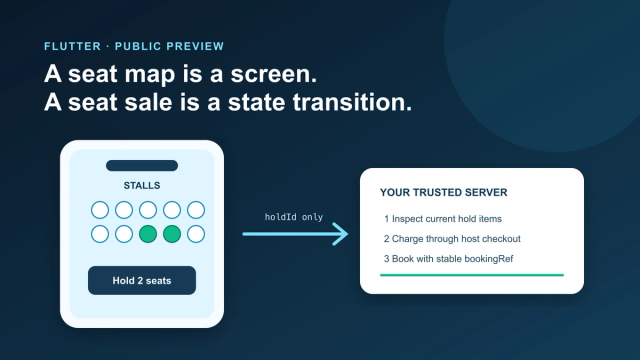
Add an Interactive Seat Map to Flutter: SDK, Holds, Checkout
Mount the public-preview SeatLayer SDK in Flutter, keep holds and payment server-side, and survive backgrounding, expiry, and 409 conflicts.
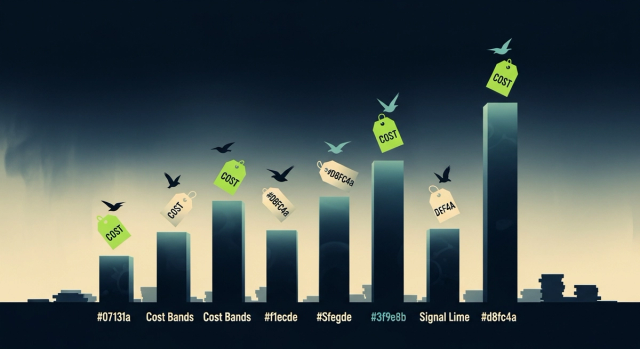
How Much Does It Cost to Hire a Flutter Developer in 2026? Rates, Salary Bands, and App Development Cost
How much does it cost to hire a Flutter developer? $15–$150/hr depending on region and seniority — breakdown by India, US, and Eastern Europe rates.
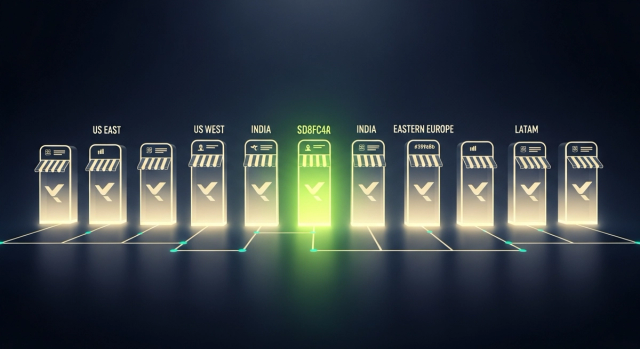
Top Flutter App Development Companies in 2026 — A Buyer's Shortlist (India + Global)
Top 10 Flutter app development companies in India (2026) — vetted by portfolio, scale, pricing, and Flutter delivery experience for production builds.

AI in Banking — Use Cases, Named Bank Precedents, and Eval Methodology (2026)
How AI is used in banking — fraud detection, credit scoring, customer service automation, RegTech, and the use cases banks are deploying right now.