How to Implement Badges in a Flutter App in 2026: Material 3 Badge, badges Package, and OS-Level Icon Badges
How to add badge notifications to a Flutter app using the badges package — install, position, animate, and style with code examples and best practices.

Badges are tiny widgets with outsized impact. They drive the open rate of every app icon on a phone home screen, the click-through rate of every notification, and the engagement loop in chat and social apps. Flutter shipped a built-in Badge widget in 3.7 that most tutorials still ignore in favor of the older badges package. This guide walks through the built-in Material 3 Badge, the badges package and when it earns its dependency cost, OS-level app icon badging, and the accessibility patterns that make notification badges work for every user.
Two framing notes. There are two kinds of flutter badge widget patterns most apps need: the small dot that signals 'something new here' without a count, and the numeric badge that shows an unread count (3, 27, 99+). Both ship in the built-in Badge widget. Second: the import ambiguity between Flutter's Material Badge and the badges package is the single most common confusion in this widget family. We address it explicitly so your IDE does not autocomplete the wrong widget.
Flutter's built-in Badge widget: the right default in 2026
Flutter 3.7 added a Badge widget to the Material library that implements the Material 3 badge spec without any external dependency. It supports two forms: the small badge (a 6 dp dot) and the large badge (a pill containing a number or short label). The widget positions itself automatically at the top-right of its child and inherits Material 3 colors from your ColorScheme.
// Small dot badge (no count)
Badge(
  child: const Icon(Icons.notifications_outlined),
);

// Large badge with count
Badge(
  label: const Text('3'),
  child: const Icon(Icons.mail_outlined),
);

// Badge with overflow label
Badge.count(
  count: unreadCount,
  child: const Icon(Icons.message_outlined),
);
The Badge.count factory handles the '99+' overflow convention automatically — pass a count of 250 and the badge renders '99+' instead of breaking the layout. The widget also handles isLabelVisible for conditional display: pass false when the count is zero and the badge hides without unmounting, so the icon does not jump when the badge appears or disappears.
BadgeTheme lets you set badge defaults once at the app level — backgroundColor, textColor, padding, alignment. We push every app to set this in ThemeData rather than override it on each badge instance. Skipping the theme is how teams ship inconsistent badges across screens, with notification badges that look subtly different from cart badges that look subtly different from chat badges.
The import-conflict that traps every team adopting the badges package
If you import the badges package alongside Material, both expose a class named Badge. Your IDE will autocomplete the wrong one (whichever it indexed first) and the bug shows up as confusing API mismatches: 'why does Badge not accept a position prop?' or 'why is label required suddenly?' The fix is to import the package with a prefix so the choice is explicit.
import 'package:badges/badges.dart' as badges;
import 'package:flutter/material.dart';

// Material's built-in Badge
Badge(label: const Text('3'), child: const Icon(Icons.mail));

// Package's Badge (now unambiguous)
badges.Badge(
  badgeContent: const Text('3'),
  position: badges.BadgePosition.topEnd(top: -10, end: -12),
  child: const Icon(Icons.mail),
);
We require the prefix on every team's lint config when they pull in the badges package. The cost of mixing the two without a prefix is hours of debugging the IDE autocomplete picked the wrong class, and the bug only surfaces when you ship to a different developer's machine where the auto-import resolved differently.
When the badges package earns its place over the built-in widget
Material 3 Badge covers most cases. The community badges package solves four cases the built-in does not: precise position offsets (top-left, bottom-right, custom dx/dy), non-circular badge shapes (instagram-style square, ribbon), built-in entrance and exit animations, and gradient or border-decorated badges. If your design system needs any of those, the package is the lower-friction path.
| Capability | Material Badge (built-in) | badges package |
|---|---|---|
| Small dot or count badge | Yes | Yes |
| Automatic '99+' overflow | Yes (Badge.count) | Manual |
| Custom position offsets | Limited (alignment only) | Yes (top/bottom/start/end + dx/dy) |
| Non-circular shapes | Pill or dot only | Square, twin-flag, custom |
| Built-in show/hide animation | isLabelVisible (no animation) | Yes (badges.BadgeAnimation) |
| Gradient / border decoration | No | Yes |
| Theme-level defaults | Yes (BadgeTheme) | No (per-widget) |
| Bundle cost | Zero (Material library) | +18 kb |
Our default rule: use the built-in Material Badge unless the design genuinely needs one of the four capabilities above. Most consumer apps need the built-in only. Brand-heavy apps (gaming, social with distinct visual identity) lean on the package for animations and decorative styling.
Five flutter badge widget patterns we ship in production apps
The five patterns below cover roughly 90% of badge use cases across the apps we ship. Each one has a default widget choice and a state-management note that catches the bug most teams hit.
1. Notification icon with unread count in the AppBar
Built-in Badge.count wrapped around an IconButton. The count comes from a stream (Riverpod NotifierProvider or Bloc) so it updates in real time as notifications arrive. Common bug: rebuilding the entire AppBar when count changes. Fix is to wrap only the badge in a Consumer or BlocBuilder, not the AppBar.
2. BottomNavigationBar tab badge for unread tabs
Wrap the icon prop of NavigationDestination in a Badge widget. Use the small dot variant when the user just needs to know 'something happened in this tab' rather than the exact count. Reserve numeric badges for tabs where the count drives action (mail, notifications)
3. 'New' indicator on a list row that has never been opened
Small dot badge on the leading icon of a ListTile. The 'opened' state lives in local storage or backend; the dot disappears when the user taps the row. Avoid the temptation to use a green/orange dot color outside ColorScheme.error — those reserve a specific semantic that should not be diluted.
4. Cart count on a shopping cart icon
Badge.count wrapped around a cart icon in the AppBar. The count comes from the cart state notifier and refreshes when items are added or removed. Two rules: clamp the count to >= 0 (negative counts during optimistic UI rollback look broken), and animate the badge briefly when count increments — that microinteraction confirms the 'add to cart' action without a separate toast.
5. Status pill on a row (live, draft, archived)
Larger badge with a text label, used as a status indicator rather than a notification count. The built-in Material Badge handles this; the badges package adds shape variants (twin-flag, ribbon) if the design wants a distinct treatment from notification badges.
OS-level app icon badges: a different problem from in-app badges
In-app badges are widgets you render inside your Flutter UI. OS-level badges are the red number that appears on the app icon on the iOS or Android home screen. These are completely different code paths: in-app badges use the Material Badge widget; OS badges use platform channels and a package like flutter_app_badger or app_badge_plus.
import 'package:app_badge_plus/app_badge_plus.dart';

Future<void> updateAppIconBadge(int unreadCount) async {
  if (await AppBadgePlus.isSupported()) {
    await AppBadgePlus.updateBadge(unreadCount);
  }
  // On unsupported platforms (older Android, restricted launchers),
  // the call is a no-op. The in-app badge still works.
}
Two pitfalls. iOS requires the user to grant notification permission before the app icon can show a badge — if you call updateBadge before permission is granted, the call silently fails. On Android, OS-level badges depend on the launcher: Pixel and Samsung support them, some launchers do not. Always check AppBadgePlus.isSupported() before assuming the badge will appear.
Accessibility: badges are invisible to screen readers by default
Semantics(
  label: unreadCount == 0
      ? 'Notifications, no new items'
      : 'Notifications, $unreadCount unread',
  button: true,
  child: IconButton(
    onPressed: _openNotifications,
    icon: Badge.count(
      count: unreadCount,
      isLabelVisible: unreadCount > 0,
      child: const Icon(Icons.notifications_outlined),
    ),
  ),
);
Performance: badges in nav bars are a quiet rebuild source
Badges sit on top of widgets that already rebuild on theme changes, navigation events, or focus changes. A badge in the AppBar that listens to a notification stream can drag the entire AppBar into a rebuild on every count change if you do not isolate the listener. The pattern below scopes the rebuild to just the badge.
// Bad — entire AppBar rebuilds when count changes
AppBar(
  title: const Text('Home'),
  actions: [
    Consumer(
      builder: (_, ref, __) {
        final count = ref.watch(unreadCountProvider);
        return IconButton(
          icon: Badge.count(count: count, child: const Icon(Icons.notifications)),
          onPressed: _open,
        );
      },
    ),
  ],
);

// Good — only the badge rebuilds
class _NotificationBadge extends ConsumerWidget {
  const _NotificationBadge();
  @override
  Widget build(BuildContext context, WidgetRef ref) {
    final count = ref.watch(unreadCountProvider);
    return IconButton(
      icon: Badge.count(count: count, child: const Icon(Icons.notifications)),
      onPressed: () => Navigator.pushNamed(context, '/notifications'),
    );
  }
}

AppBar(
  title: const Text('Home'),
  actions: const [_NotificationBadge()],
);
Badges are one widget in our broader Flutter widgets catalog. For the broader production patterns we apply on every Flutter delivery — state, performance, CI/CD, accessibility — see our Flutter mobile app development field guide.
Migrating from the badges package to the built-in flutter badge widget
If you adopted the badges package before Flutter 3.7 and want to drop the dependency, the migration is mostly mechanical but the property names differ. Here is the mapping we apply when we audit older Flutter apps for dependency reduction.
badges.Badge(badgeContent: Text(count.toString()), child: icon) maps to Badge(label: Text(count.toString()), child: icon) or Badge.count(count: count, child: icon). The position prop on the package version has no direct equivalent on Material Badge — if your design needs a non-standard position, keep the package on that specific widget or build a Stack-and-Positioned custom widget. The animation prop on the package becomes manual: wrap the count in an AnimatedSwitcher if you want the badge to fade or scale on changes.
Two things to verify post-migration. First, the visual output: Material Badge defaults to ColorScheme.error (red) and a slightly different size from the package default, so badges may look subtly different across the app after a partial migration. Either migrate every badge in one PR or set BadgeTheme to match the package's previous defaults during a transition window. Second, the a11y behavior — the package version does not announce the count to screen readers either, but if you had explicit Semantics wrapping the package version, port them across when you swap to Material Badge.
When NOT to use a flutter badge widget at all is the question that catches more teams than the implementation details. Badges are noisy by design — they pull the user's eye. Reserve them for state that genuinely needs attention: unread counts on a primary action, a one-time 'new feature' signal, status that drives a click. Avoid them as decoration, version stamps, or 'always on' indicators that the user learns to ignore. Banner fatigue is the real cost of badge overuse.
One last concrete detail every internationalized app needs to verify. The Material Badge automatically mirrors its position for right-to-left locales (Arabic, Hebrew) — the count appears on the top-left of the icon instead of top-right. The badges package also handles RTL through the position argument's logical start and end keys (use BadgePosition.topEnd rather than topRight to opt into mirroring). If your design specifies pixel offsets in physical terms (top: -10, right: -12), you break RTL mirroring on the package version. Stick to logical positioning unless you have a specific reason to lock physical placement, and run an RTL build of your app at least once per release to catch any badges that drift off-screen in mirrored layouts.
Common questions about flutter badge widgets
Should I use the built-in Badge widget or the badges package?
Default to the built-in Material Badge widget (Flutter 3.7+). It covers the small dot and numeric badge patterns most apps need with zero dependency. Reach for the badges package only when the design needs precise position offsets, non-circular shapes, built-in entrance animations, or gradient decoration.
How do I handle counts over 99 on a badge?
Use Badge.count factory with the unreadCount integer. It automatically renders '99+' when the count exceeds 99, matching the convention every messaging and social app follows. Manually building the overflow logic is unnecessary as of Flutter 3.7.
How do I import the badges package without breaking the Material Badge widget?
Import with a prefix: import 'package:badges/badges.dart' as badges;. Then use Badge for the built-in widget and badges.Badge for the package's widget. Without the prefix, your IDE autocompletes whichever it indexed first, and the bug appears as API mismatches that are hard to debug.
How do I hide a badge when the count is zero?
Pass isLabelVisible: count > 0 to Badge.count. The widget hides without unmounting, so the parent icon does not jump when the badge appears or disappears. Manual conditional rendering (if count > 0 wrap in Badge else just the icon) causes layout shifts.
Can I show an app icon badge on the iOS or Android home screen?
Yes, but it uses a different code path from in-app badges. Use a package like app_badge_plus or flutter_app_badger. iOS requires notification permission first; Android support varies by launcher. Always check isSupported() before updating the badge.
How do I make Flutter badges accessible to screen readers?
Wrap the icon-with-badge in a Semantics widget with an explicit label like 'Notifications, 5 unread'. Material's built-in Badge does NOT announce its count to screen readers by default — without the Semantics wrap, the count is invisible to assistive tech.
Why does my badge cause AppBar rebuilds?
The listener (Riverpod Consumer, BlocBuilder, etc.) is scoped too widely. Pull the badge into its own widget that owns the listener so only the badge rebuilds when the count changes. The AppBar above it stays static.
Can I customize badge colors with Material 3?
Yes. Set BadgeTheme in your ThemeData with backgroundColor and textColor — every Badge in the app picks it up. Default is ColorScheme.error (red) for the count badge, which is the M3 spec. Override only when the brand explicitly needs a different signal color.

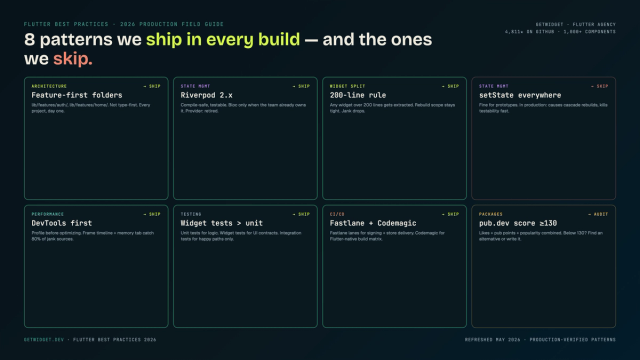
Flutter Mobile App Development: A 2026 Production Field Guide
How we structure Flutter projects at GetWidget in 2026: feature-first layout, Riverpod defaults, Dart 3 records and sealed classes, Material 3 theming, the 200-line widget rule, performance diagnosis, CI/CD pipelines, and the production pitfalls that bite teams after launch.
Best Flutter Toast Widgets in 2026: SnackBar, fluttertoast, and the Packages Still Worth Knowing
Top 10 Flutter toast widgets to show short-lived popup messages — code examples, customization options, and how to integrate GetWidget's GFToast.
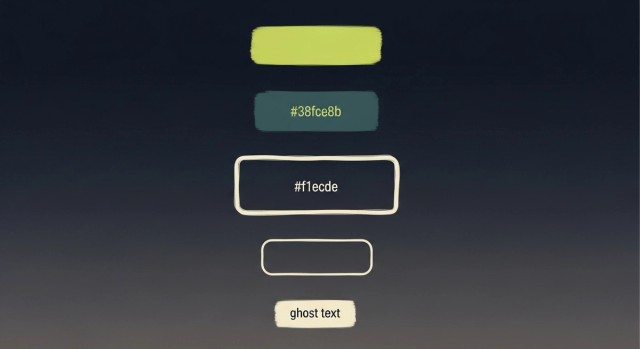
How to Design Custom Flutter Buttons in 2026: A Practitioner Guide to All 5 M3 Button Widgets
Flutter button widgets in 2026: the five Material 3 button classes (Filled, FilledTonal, Elevated, Outlined, Text), ButtonStyle deep-dive, GFButton when M3 isn't enough, FAB and IconButton patterns, M2 migration map, plus the accessibility and performance bars no tutorial covers.